Make Login Pages Autofocus

I see this way too often and it gets on my nerves. If you have a page that’s main purpose is a form, such as a login page, please make the page autofocus to the first field in the form. Having to tab or click on the first field is a nuisance. Even big sites make this mistake.

If you don’t care about IE you can do it as simply as:

<form method="post" action="/">
<p>
    <label for="username">Username:</label>
    <input type="text" name="username" id="username" autofocus="autofocus"/>
</p>
<p>
    <label for="password">Password:</label>
    <input type="password" name="password" id="password" />
</p>
<p><input type="submit" name="login" value="Login"/></p>
</form>

Since autofocus is boolean you technically don’t even need to specify an attribute value.

To do it with IE in mind you could use the following JavaScript below the form (no library needed):

function focusForm(){
    setTimeout(function(){
        try {
            // id of element to focus on
            var elem = document.getElementById(‘username’);
            elem.focus();
            elem.select();
        } catch(e){}
    }, 50); // setTimeout to fix IE bug
}
focusForm();

Note the use of select() so if the form reloads due to an incorrect password the field is not just in focus but the contents highlighted. There is also a setTimeout() since IE, at least some older versions have trouble with this if it happens too quickly. 50 should be fast enough that it won’t be noticed by humans.

See how simple that is? No excuses for not fixing this ;-) .

Define Mute

One of the tricky things about building products is defining the details. When you say “mute switch” as you’d see on a phone like the iPhone, what exactly do you mean my “mute”? App sounds? Calls? What about an alarm? Muting an alarm sounds reasonable, but perhaps the reason for using the switch is so you can sleep until your phone wakes you up in the AM (I suspect that’s actually a very common use case).

John Gruber has a pretty good insight on the iPhones mute switch design, which doesn’t cover alarms as one New York Philharmonic audience member learned the other night. I agree that it’s an edge case, however think an alert the first time you switch it (and then never again) would be a reasonably good UX. Doing so every time as he explains wouldn’t be workable since you often do use the switch without taking your phone out of your pocket. I know I do it all the time.

In “the old days”, you’d just make that a 3 way selector: mute all sounds, mute all but alarm, all sounds on. 5% of users would figure out how it works.

Smartphone Guest Mode

A very good idea by Greg Kumparak on TechCrunch:

Here’s the dream: one lock-screen, two PINs. One for me, one for anyone else who might use my phone but doesn’t necessarily need to see everything.

Not only is it a good idea for there to be a guest mode, the implementation is quite nice and simple. Maps, Phone, Clock, Calculator, Safari. Perhaps the ability to granularity add/remove from that default set. Everything is stateless and rest when guest mode ends.

This could potentially even lower the divorce rate in the US.

Confession: I’m A Touchscreen Snob

Continental Touchscreen

I’m a touchscreen snob, and I bet you are too. I bet every human being is. We get upset when things don’t react as expected and we get frustrated when things aren’t instant. Statistically this page loads on average under 2 seconds and it’s likely still too long for you. It’s not just touch screens. For example, 100 ms increase in load time of Amazon.com decreased sales by 1%. We’re an impatient species.

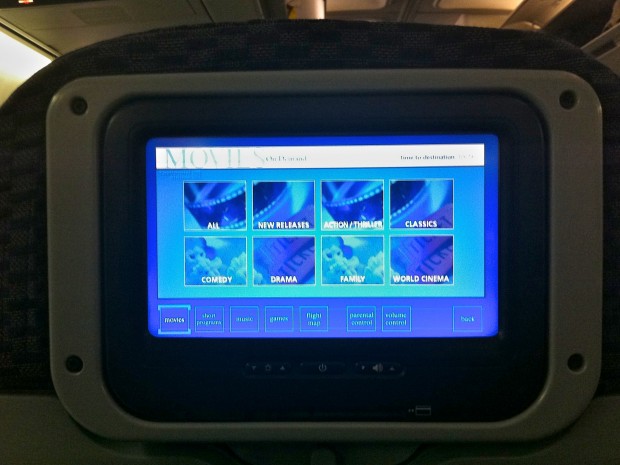
I took the above photo on a 757-200 equipped with touch screens on the back of every seat. I remember the days with only a handful of TV’s, or that big projector thing up front on planes, so I appreciate that a choice of entertainment is an upgrade. Lets take a look at it’s sins as it makes a great example:

Resistive Touchscreen

I’m virtually certain based on it’s poor performance it’s a resistive touchscreen. Unresponsive, and it requires a lot of pressure which the person in the seat in front of you enjoys for 8 hours. Resistive touchscreens are much more cost effective, though I wonder that difference is splitting hairs on a $65-80 million aircraft given there are only ~200 seats and the displays are relatively small.

There was a time when nobody would notice, but even a Droid v1′s touch screen is more responsive, and that phone is extensively laggy.

Poor Contrast

Part of this is likely because of the substrate used for resistive touchscreens, but the poor contrast is obviously an issue. Color reproduction is bad, but that’s not a deal killer, it’s a nitpick. Contrast is critical especially on a vehicle where lighting varies from dark to virtually unfiltered sunlight glaring on the display. Contrast controls are minimally helpful here.

Laggy

I suspect these are units are just terminals, so the performance can sometimes lag. It’s forgivable and likely will not be an issue in future generations. Thanks to the mobile revolution low powered ARM chips can be found everywhere. The need for these things to be dumb to save space and power is drawing to a close.

Sound

I’ve yet to figure out why airlines can’t manage to get rid of the noise in the lines. Sure when you use the $0.25 headsets they hand out you can’t tell the difference. But when you use your own higher quality headset you sure can. Given a cheap mp3 player can manage it, I wonder why this is so difficult. Weight?

My second gripe about sound is the volume differences. The movie is set to a comfortable level. If the crew takes over to show a video of your destination or a safety video, it’s uncomfortably loud. If the captain speaks, it’s painful. This is more than a nuisance, this is actually a safety issue.

Google Instant = Web Command Line Interface

“What’s old is new again” the saying goes. Google Instant is a pretty interesting UI change. One of the big things mentioned is that all you need to do is type “w” and you’ll see the local weather. A way to get information by just typing… some of us know that as command line interface.

Essentially we’re seeing Google move from a point & click UI to almost a command line UI. For ages the focus was automatically set on the search box, no need to click on it. Just type, press enter or as I’m sure many (if not the majority did) mouse over the “search” button and click on it and you got search results. It’s just another step forward in simplifying the process. This is one less interaction (pressing search).

It’s interesting to see a less mouse centric UI develop after decades of anti-keyboard UI. For those of us comfortable typing quickly and using keyboard shortcuts constantly it’s a constant nuisance when applications don’t handle shortcuts nicely. We’re now seeing an effort to reduce use of the mouse, even if it’s just to press the “Search” button. One less reason to take your hands off the keyboard.

One interesting quirk I’ve noticed is Google’s calculator (the ability to type a math problem into Google and get an answer) just feels awkward and unpolished. I suspect they will improve upon that shortly. This can vastly improve the utility of these little applications. Google has several little apps built into its search (try typing “movies” for example). It’s just that much easier to use.

Capturing User Innovation

Building a new product is always fun. You draft ideas, generate wireframes, mockups, prototypes, you build your app, you tweak it, you release it. In the case of software and web applications you also get to update it and make it better. If it’s hardware, you work on a 2nd revision to be sold a year later to people who didn’t adopt early (jab at early adopters).

One of the most interesting things is how users actually use the product you make, if they use it at all. Do they use it a little or a lot? Do they use it as intended? Do they find things missing? To robust for their taste? Or do they just find uses and modifications that all the engineers involved never in a million years would have contemplated?

Continue reading

Usefulness + Speed = Users

As a frontend developer I’ve long argued the magic formula for a good website is:

Usefulness + Speed = Users

This is based on the fact that the best websites on the internet are pretty spartan in appearance. When you look at many of the successful ones (Google, Yahoo, Craigslist, Facebook), they’ve all taken the approach of simplicity on the frontend. They keep the user interface as minimal as possible, and they keep the technology and code as minimal as possible.

An interesting quote from CNet:

The same effect happened with Google Maps. When the company trimmed the 120KB page size down by about 30 percent, the company started getting about 30 percent more map requests. “It was almost proportional. If you make a product faster, you get that back in terms of increased usage,” she said.

Emphasis mine.

Just goes to show that faster things become more than useful to users. They become a convenience. Users don’t really care how it looks or they would have switched from boring Google a long time ago. They just find it so convenient and quick they can’t stop using it.

I suspect this is why digital clocks are so popular.

Roman Numeral Analog Clock

Most people find an analog clock to be “classy”, in particular when there are roman numerals. But when you come down to being practical, they aren’t as quick to read for most people since we rarely deal with roman numerals. The solution used to be using Arabic numbers to increase usability and speed:

Arabic Numeral Analog Clock

This is better, but not perfect. Still slow to read, and your estimating the minutes. These days, we have the technology to produce low cost digital time readouts with Arabic numbers. These are more accurate since they show the minutes, and maybe even seconds, and can be read at a glance with almost no effort.

Arabic Digital Clock

Despite hardly looking fancy, this is what you see in most train stations, airports, etc. The older clocks are still around, but mostly for aesthetic purposes. People are willing to sacrifice looks for convenience. That’s why they walk around with digital watches rather than the more classy ones. Both can be found for cheap, but one can easily be read (even with poor vision, and in the dark).

Simplicity always rules. Unless your a nerd with a binary clock (which is cool).

I suspect this rule also holds true for software. If it’s faster, people are more inclined to use it. People moved from IE 6 to Firefox because it’s faster. Given that Firefox 3 is even faster… I’m hoping this trend will be proven yet again with an improved adoption rate.

Another upcoming test of this principle will be the Apple’s 3G iPhone. Will the average number of minutes browsing the web increase with the additional speed of a 3G network? Will faster performance make people use the device more? I suspect so. I also think it will increase adoption as many people were turned off on the idea of spending that much for EDGE. For 3G, that’s a different story.

It’s really pretty interesting stuff. People often associate usability with user interface design, and never performance. But that data really does seem to point to performance being one of the easiest ways to make a product more usable.

Images: Grand Central Terminal clock © 2004 Metropolitan Transportation Authority, Clock in Kings Cross, LCD Clock Grey via Wikipedia

New Java Plugin

There are a few goodies in the new java plugin that will be available for Firefox 3.0 and later that I’m really glad to see:

  • Improved reliability. The JVM running the applet is isolated from the web browser at the operating system level. If something should go wrong while running the applet, or if an uncooperative applet refuses to shut down, the new Java Plug-In detects and handles the error condition gracefully; the web browser is unaffected.
  • Improved user experience. The new Java Plug-In starts applets in the background, so the web browser always remains responsive. Applets appear on the web page as they become ready to run.

A major criticism of java applets has always been their impact on browser performance. This should do a lot to remedy the problem. Another great addition is that you can now use an animated loading gif by using a new image param such as:

<applet archive="large_archive.jar"
          code="MyApplet"
          width="300" height="300">
    <!– Use an animated GIF as an indeterminate progress bar
          while the applet is loading –>
    <param name="image" value="animated_gif.gif" />
    <!– Turn off the box border for better blending with the
          surrounding web page –>
    <param name="boxborder" value="false" />
    <!– Center the image in the applet’s area –>
    <param name="centerimage" value="true" />
</applet>

There’s other great stuff, but these are my personal favorites as they resolve long time gripes. You can find the above plus more in the release notes.

[Hat Tip: Henrik Gemal]

Silverlight Update System?

Silverlight update dialog

So when I pointed Firefox to MSN tonight, this is what I saw. Is this really the best way of notifying users of an update? Could they have at least used a confirm() to allow the user to decide if they want to visit that url or not. Or perhaps use a <div/> to overlay the content of the page when it loads. Is a user supposed to type that url in by hand? Does the average user even know what to do when they see this dialog (other than hit “OK”)? Perhaps just say “visit silverlight.net and download the latest version”?

Just goes to show how awesome the Firefox automatic update system is.

Considering Microsoft has an update system on all Windows systems, you’d think at least for the Windows platform, they could rely on Windows Update.

Am I missing something? Is there really no better way than an alert()?

Remember everyone, that’s 0x4009e, those are ’0′, not ‘O’.

No wonder people hate technology so much.